Cancel Enabled SMM Services: Stop an Order Any Time
MediaTakipci October 15, 2026 Guides
Your customer orders 250,000 TikTok followers. An hour later they write back: wrong account, they meant the new one. Or the campaign was moved to next month. Or the account was switched to private overnight. On most SMM panels, what happens next is a ticket, a wait, and a balance that stays spent until someone answers.
This guide explains what Cancel enabled means on MediaTakipci, how the Cancel remaining button works, when it is worth choosing a Cancel enabled service, and how to turn it into a better offer for your own customers.
Key takeaways
- On services marked Cancel enabled, you can stop a running order yourself with the Cancel remaining button in your order list.
- The amount for the rest of the order goes back to your balance instantly. No ticket, no waiting for an answer.
- The order closes as Partial, and you keep what was delivered.
- We do not offer refills, so for large or uncertain orders, a Cancel enabled service is how you keep control.
- You can pass the same flexibility on to your own customers and offer "cancel any time" on your packages.
What does Cancel enabled mean?
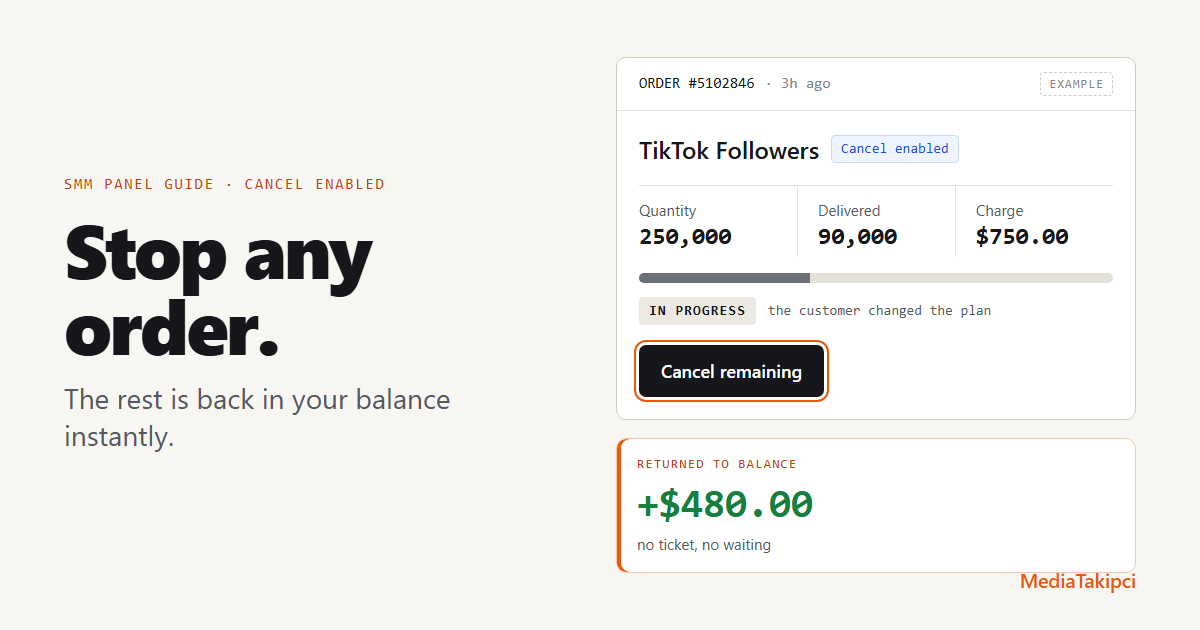
A Cancel enabled service is a service whose orders you can stop yourself while they are running. Orders on these services get a Cancel remaining button in your order list. Press it, confirm, and the order stops. The amount for the rest of the order goes straight back to your balance, and you can use it for the next order right away.
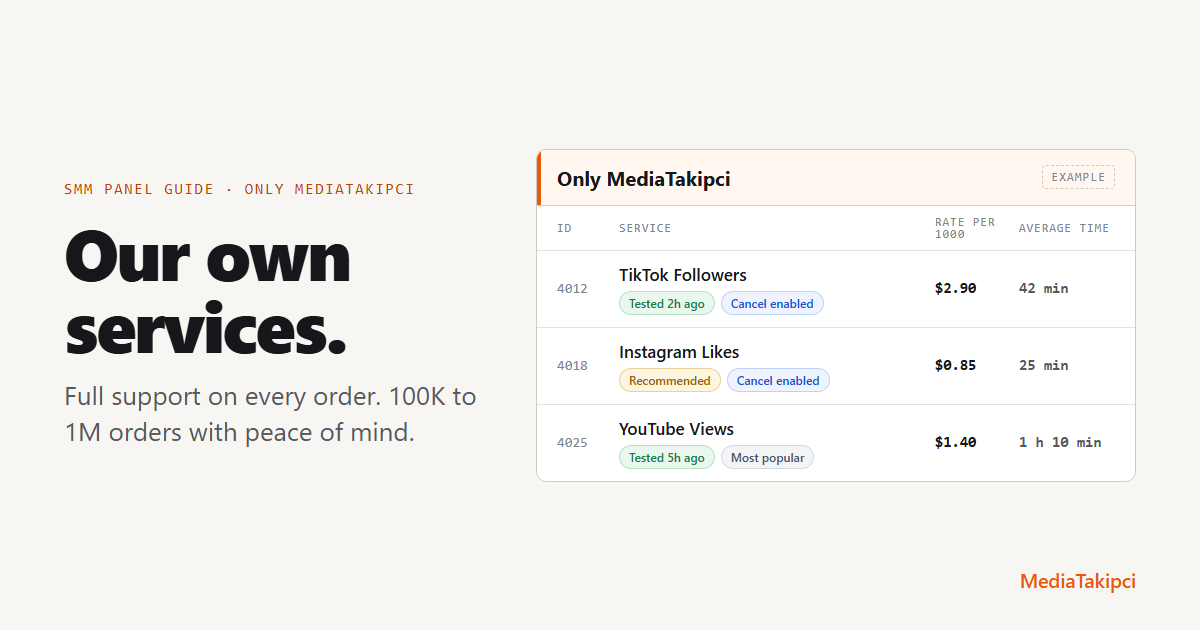
You can see which services are Cancel enabled by the badge next to the service name, both on the SMM services page and on the New order page.
Cancel request or Cancel remaining?
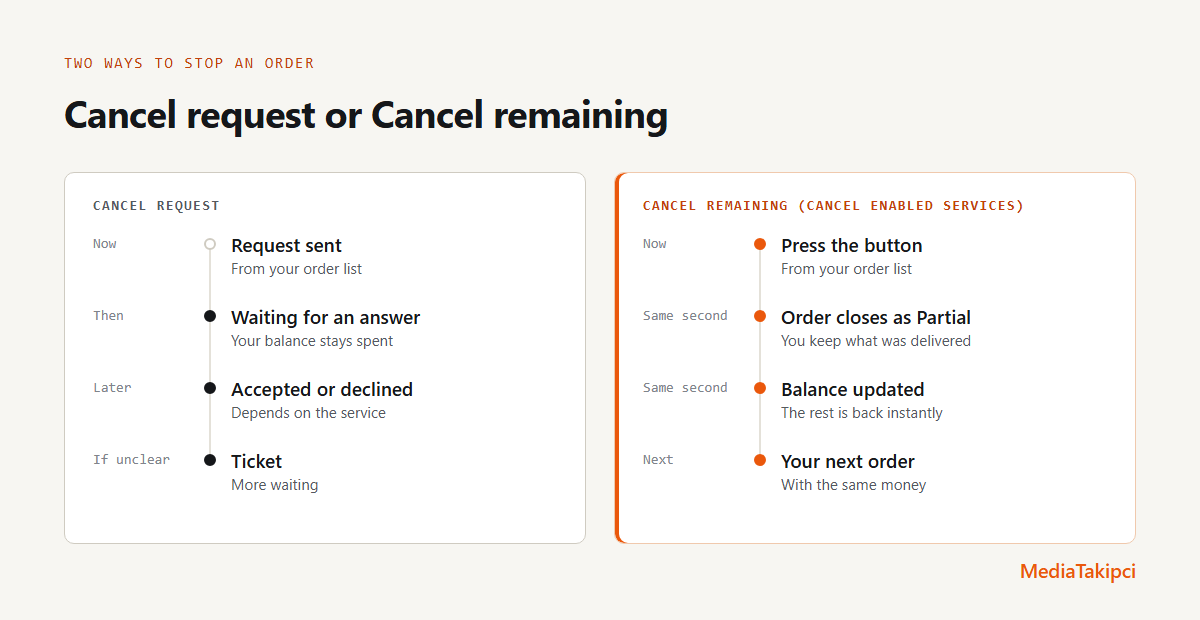
Most panels, ours included, let you send a cancel request on an order. Cancel remaining is a different thing. This is how the two compare:
| Cancel request | Cancel remaining | |
|---|---|---|
| Where | On most services | On services marked Cancel enabled |
| Who decides | It depends on the service; the request can be accepted or declined | You, with one click |
| How long it takes | Not fixed | Instant |
| Your balance | Stays spent until the request is settled | The rest comes back immediately |
| Ticket needed | Sometimes | Never |
When resellers press Cancel remaining
These are the situations where a way out matters most:
- The customer changed the plan. The campaign moved, the budget was cut or the post was deleted. Stop the order, keep what was delivered, and refund your customer the rest the same day.
- The link was wrong. The order went to an old post or the wrong profile. Stop it before it goes further, then place a new order on the right link.
- The account went private. A private account stops any order. Instead of leaving the money tied up, stop the order and start again when the account is public.
- You are trying a service for a big package. Before you put a large package on your site, place a real order and see how it behaves. If it does not fit what you want to promise your customers, stop it.
- The order is slower than your customer expects. On services that offer it, press Speed up first and our team takes it from there. If the plan itself has changed, Cancel remaining is the clean way out.
How to use Cancel remaining
- Pick a Cancel enabled service. Look for the badge on the services page. Not sure which service to use? The service finder shows the service our team picked for each platform, service type and goal.
- Place the order as usual. Nothing changes in the order form.
- Open your order list. A few minutes after the order starts, the Cancel remaining button appears on its row.
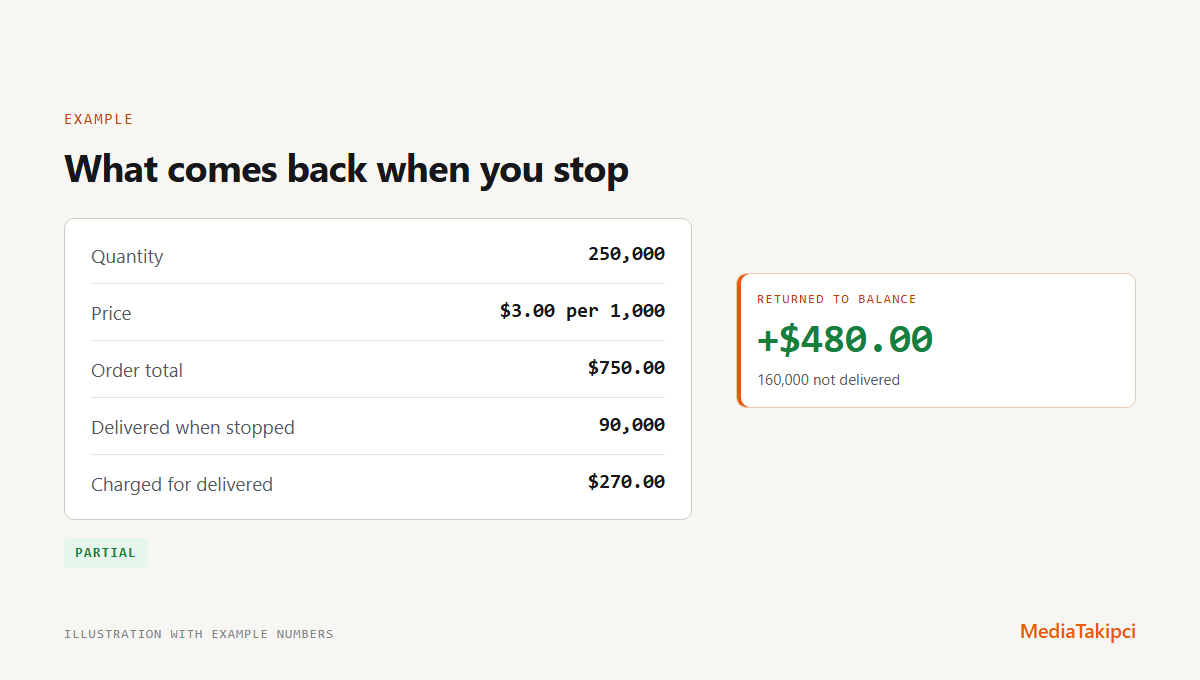
- Press Cancel remaining and confirm. The order stops and closes as Partial. The amount for the rest of the order is back in your balance immediately.
What Cancel remaining does not do
Knowing the limits up front saves surprises later:
- It is not on every service. Only services marked Cancel enabled have the button. On other services you can still send a cancel request.
- It does not undo what was delivered. Followers, likes or views that already arrived stay where they are, and they are charged.
- It is not a refill. We do not offer refills. If a count drops later, Cancel remaining does not top it up. It stops an order; it does not repair one.
- It does not appear in the first minutes. The button shows up a few minutes after the order starts.
Turn it into a better offer for your customers
Cancel enabled services are not only a safety net for you. They let you promise something most SMM sellers cannot: a customer who changes their mind gets their money back the same day.
- Offer "cancel any time" on the right packages. Build your large and custom packages on Cancel enabled services, and say so on the package page.
- Write a clear refund rule. For example: "You can cancel a running order at any time. What was delivered stays, and the unused amount goes back to your account." Customers trust a rule they can read before they pay.
- Note the start count. Write down the follower, like or view count before the order starts. When you stop an order, you can show your customer exactly what was delivered.
- Refund the same day. Your balance is back instantly, so your customer does not have to wait for a ticket on your side either.
Large orders and Cancel enabled
The bigger the order, the more a way out is worth. A 1,000,000 views order that you can stop at any point is a very different risk from one you cannot. If you sell large packages, read our guide on 100K to 1M orders without stuck orders.
Control stays with you
We built Cancel remaining because an order you no longer want should not cost you days of waiting and a customer. On Cancel enabled services, you decide when an order stops, and the rest of your money is back in your balance the moment you do.
See the services with the Cancel enabled badge or create an account.
Frequently asked questions
What does Cancel enabled mean on an SMM panel?
A Cancel enabled service lets you stop a running order yourself with the Cancel remaining button in your order list. The amount for the rest of the order goes back to your balance instantly, without a ticket.
Where can I see which services are Cancel enabled?
Next to the service name, as a Cancel enabled badge, on the services page and on the New order page.
How fast does the money come back?
Instantly. As soon as you confirm Cancel remaining, the amount for the rest of the order is back in your balance and you can use it for your next order.
What happens to what was already delivered?
It stays, and it is charged. The order closes as Partial.
Can I cancel an order on a service without the badge?
You can send a cancel request from your order list. Whether it goes through depends on the service.
Is Cancel remaining the same as a refill?
No. We do not offer refills. Cancel remaining stops an order; it does not top up a count that drops later.